Friday, 26 September 2014

SharePoint 2013 | View post on anonymous blog asking for auth?

So, SharePoint 2013 has a lovely feature that is automatically enabled when a site or at-least parts of a site are set to allow anonymous access, this feature is "Limited-access user permission lockdown mode" it stops anonymous users from seeing SP system pages, it is a very useful security feature and in previous versions of SP, it is automatically disabled when the site is set to allow anonymous, 2013 being a more security conscious beast sets it by default.

Why is this an issue? a blog is just a normal site with pages in a library? not so!

A blog site consists of 

  1. a homepage (viewable with anon, perfectly fine)
  2. a Comments list (adding comments as anonymous is also fun and games!)
  3. a Posts list (all blog articles are posts, and here is where the problem lies, clicking on a post on the homepage takes the user to the "view form" for that list item, hence a system page! so it is automatically locked down

So with this you really have two options:

  1. Disable the “Limited-access user permission lockdown mode” Site Collection Feature (see the side effects below)
  2. Create a custom view and list web part, all in a pages library

Both options are valid but choose carefully, they both entail extra work, disabling the lockdown feature does the following:

Allows list pages and system pages applicable to a read user to be viewable anonymously, so a user can navigate to those pages and see the lists, all left hand nav panels will show Site Contents and any other previously restricted links, so you end up needing to hide the links and need to be wary of anonymous visitors seeing your sites lists and libraries

Tuesday, 23 September 2014

SharePoint 2013 | Arabic display templates issues

I had another lovely issue recently, i created a set of display templates for different languages, all worked fine except Arabic, when the html file was uploaded the JS would get generated but as a "Design File", so the CSWPs wouldn't pick it up, tried changing the CT manually and it errored out saying the master page gallery didn't have the right fields.

The solution was to install SP1 and SP1 for the language packs, save yourself time, make sure you have a properly patched server!

Tuesday, 9 September 2014

Surface 3 Pro as a web development machine


A few weeks ago I obtained a surface 3 pro (128gb/4gb), since then I have been using it constantly as my main machine in an effort to see if and how it can be used as a development machine, before this I was using a Lenovo Z500 (8GB ram, i7 3rd gen, 1tb disk) so I naturally compare the performance and use of the surface to that.

The work I do in a day to day basis:
  • PHP dev (LAMP server, VS 2013)
  • Powershell (ISE/prompt x 2)
  • ASP.net Dev (2-5 dev sites up at any time, all with VS 2013)
  • SharePoint Dev (SPD 2010/2013, VS 2010/2012/2013)
  • Graphic Design (Paint.Net, Photoshop)
  • Presentations and demoing (Office Suite, Lync, Camtasia)

So I main needs for a laptop are:
  • It needs to be Quick
  • Can handle the masses of chrome and IE tabs I have open along with a few instances of VS and a few RDP sessions
  • Portable (I generally carry it for atleast 2h/day)


The Good
  • The battery can generally see me through an entire workday without needing to charge, very useful for travelling
  • The plug has a USB charger built in
  • The build of the Surface is spot on, its solid and all the parts work well together
  • Size means its easy to use in smaller spaces
  • Nice in-built sound, for those spotify/netflix moments
  • Type keyboard feels good when typing, feeling like a miz beterrn a mac pro keyboard and the awesome old "tappy" keyboards
  • Its very portable, being list and small, the kick stand being able to pivot to most positions makes it great to have on most types of desk
  • The InstantGo functionality is nice, meaning you can just close the keyboard over the screen and the surface instantly goes into a sleep state, you can carry it around for hours and it wont loose almost any battery in that stage, great when you are about to make a demo or a presentation, one less thing the demo gods can smite you with! 
The Bad
  • The touch screen functionality in windows 8.1 still doesn’t really cut it when you need to use a lot of selecting so a mouse is needed
  • Use of display port means I have to carry a box of different cables around (VGA/HDMI/Ethernet) to connect to a wired network or to any external screen
  • 4GB of ram means occasionally being selective on the apps I have open and almost no possibility for on-box VM's, but with teh readily available Azure VM's, there isnt really a need to have the local VM's, atleast in the way we used to need them so this isnt much of an issue
  • Screensize can be a bit small, recommend docking it to a larger screen

Conclusion
I have found this to be a brilliant replacement for a the z500 laptop, it can rip through almost any work quickly, my biggest issue with it is the size of the screen, when developing on it, due to the nice resolution it means code can be hard to see, but of course if you have an office space, a doc and a 24inch monitor solves that very easily and cheaply.

Now i have been using this for weeks i cant see the need to go back to a full laptop unless you need that extra grunt for VM's or a few instances of Photoshop and other apps open

Ofcourse it depends on what you are looking for and the type of intensive web dev you do, based on my needs it ticked every box, i would use this for everything apart from local VM's

Tuesday, 8 July 2014

.NET | Issue | CSV export giving corrupted chars for non english characters Â

Someone asked me today about an encoding problem they were having, its amazing, encoding issues have been around since the beginning of computers, the requirement to export international data to files or pages and having the reader interpret the characters correctly is pretty common, I would go so far as to say that about half of every big projects has some form of requirement around that.

So then we come to why the issue shows up? "Ive debugged and can see the data from the database is being shown correctly but when i export it to the response, the special characters come back as gobbledygook, even the pound symbol is coming back as '£'"

what do you do?

  1. Check the data in the database is stored correctly and it is getting to the response without being corrupted
  2. Check you are setting the ContentEncoding correctly, what do you need to use? UTF8 is always a good one to use if you are unsure
  3. Make sure you are using the right BOM (Byte Order Mark)! (this is nearly always the issue with unexplained chars with the correct encoding, see below

if you want to know more about BOM, have a look at this - http://en.wikipedia.org/wiki/Byte_order_mark

Friday, 4 July 2014

Working with multiple Microsoft accounts (multiple 365 accounts)

it can be tiresome and confusing working with multiple microsoft accounts. there are countless scneario's where you will need to be logged in to more than one microsoft account at the same time, now the common way of doing this would be to use different browsers, IE and FIrefox or chrome for example, thats one way of doing it but that means you can only have a certain number of accounts, or using in private or incognito browsing but again, they all have limited usage and with the in private you will loose your credentials and history when you cose the window

Scenario's:
Using personal Live account and need to sign in with company account
Using company account and trying to sign in to company dev account
Using client account and trying to sign in with company account
the scenario's go on and on,

Enter Chrome Users....

Chrome has taken the title of best browser from firefox a few years back, it is quick, light and it works, for most web developers it is the browser of choice and thelist of reasons for that are as long as your arm.

chrome has another feature that most people arent aware of or using, this feature is perfect for using multiple accounts

Chrome Users

Setting up Users: he chrome site has all the information you need on setting up users here: https://support.google.com/chrome/answer/2364824?hl=en-GB

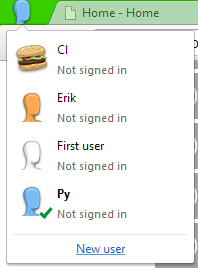
On my environment i need to mange four separate Microsoft accounts, for this I have created four users, my first user being my main intranet account:


on that account I have saved passwords and settings for that user, if I click to the "Py" account, a new window opens with that user icon, with that i am able to use all my saved settings and passwords for my "Py" 365 account


You can see when you have multiple windows up, the icon user indicator allows you to easily see which window is which, this works for as many users as you want.


I highly recommend using it for any one who has to manage more than one Microsoft account, it is brilliant and such a simple way of managing multiple accounts!

Wednesday, 25 June 2014

SharePoint 2010/2013: Enable-SPFeature Error (Failed to create receiver object from assembly)

So I had another lovely error recently, I had a wasp which had some external assemblies, I accidentally forgot to add one to the package manifest and when it deployed I got:

Enable-SPFeature : Failed to create receiver object from assembly "ASSEMBLYNAME, Version=1.0.0.0, Culture=neutral, PublicKeyToken=eaf1b7820cf1
fb30", class "CLASSNAME" for feature "FEATURENAME" (ID: 08284496-c68e-4f6c-befe-5777d14ad74b).
: System.ArgumentNullException: Value cannot be null.

So I instantly realised I was being silly and added the reference to the package manifest, packaged it, cabbed it, The Dll was in there, Great! I deployed the wsp and tried The deployment script again, it failed on the same point, I checked the gas, it was there alright, everything was looking as it should, but I couldn't activate the feature.

What was wrong? I tried deploying once more, did an observer for good measure and still nothing.

I then thought I would reopen the PowerShell window and try once again on the off chance that something was borked, so I restarted it, ran the script and it worked!

For some reason, the PowerShell session had cached the old error response from the feature activation, I don't know why but that's what it seemed to do.

Rule of thumb for the future, open a new ps session if you get an unexplained issue with a ps script

Tuesday, 17 June 2014

SharePoint 2013/365: Get current page properties/metadata with REST

Scenario

Retrieve the current page layout name via the page metadata on Office 365, this approach must be maintainable, flexible and not have any extra costs


Investigation

There are a number of ways to get the current page metadata with full trust code, simply using the SPContext.Current.ListItem allows you to get the collection, of course that wont work going forward with O365.

The most flexible way of working with any form of SharePoint object in O365 is to use JavaScript, thankfully there are a number of ways that can be done:

  • Use the JSOM - there are a number of blog posts currently on how to return the current items with JavaScript
  • Use Search - mapping properties and matching the search result by url is also a possibility, this is fast and allows easy optimisation
  • Use REST - there isn't much on this approach out there, it looks like a pretty obvious choice so i decided to try this approach.

Solution

The architectural approach is as such:
On Page Load

  1. Using the current context object data form a rest query
  2. Query the ListItem REST endpoint
  3. Get the page fields out of the returned data

Here is the finished codeblock:

Saturday, 7 June 2014

Powershell | Get SharePoint 2010 Custom Error and Access Denied pages

A simple script, run this on any SharePoint server in a farm and it will return all set error and access denied pages for all web applications:

Scenario: Audit of farm setup

Script:
<#
.Synopsis
   Gets all set error and access denied pages for all webapps in the current farm
.EXAMPLE
   get-sperrorpages
#>

function get-sperrorpages()
{
    $snapin = Get-PSSnapin | Where-Object { $_.Name -eq 'Microsoft.SharePoint.Powershell'}
    if ($snapin -eq $null)
    {      
        Write-Host "Loading SharePoint Powershell Snapin"
        Add-PSSnapin "Microsoft.SharePoint.Powershell"
    }

    Start-SPAssignment -global
get-spwebapplication | ForEach-Object {
Write-Host "Web Application: $_" -foregroundcolor Green
Write-Host " - Error Page Set:" $_.GetMappedPage([Microsoft.SharePoint.Administration.SPWebApplication+SPCustomPage]::Error)
Write-Host " - Access Denied Page Set:" $_.GetMappedPage([Microsoft.SharePoint.Administration.SPWebApplication+SPCustomPage]::AccessDenied)
Write-Host ""
}

    Stop-SPAssignment –global
}

Output:
PS C:\dev\scripts\audit> .\get-errorpages.ps1
Web Application: SPWebApplication Name=intranet.devnet.local
 - Error Page:
 - Access Denied Page:

Web Application: SPWebApplication Name=extranet.devnet.local
 - Error Page: /_layouts/Devnet.Local/Error.aspx
 - Access Denied Page: /_layouts/Devnet.Local/AccessDenied.aspx

Web Application: SPWebApplication Name=internet.devnet.local
 - Error Page: /_layouts/Devnet.Local/Error.aspx
 - Access Denied Page: /_layouts/Devnet.Local/AccessDenied.aspx

Web Application: SPWebApplication Name=edit.internet.devnet.local
 - Error Page: /_layouts/Devnet.Local/Error.aspx
 - Access Denied Page: /_layouts/Devnet.Local/AccessDenied.aspx

As you can see from that execution my farm has four web applications, three are publicly accessible so i have set custom error and access denied pages, the fourth is internal only so there is no need for any custom branded pages

Powershell | Get all active RDP sessions for a username

For any IT admin/dev, the ecosystem involves connecting and managing multiple remote desktop sessions to different servers and computers, this can get very cumbersome to maintain and make sure you are disconnecting, many of you probably use mRemote or Remoter Desktop Connection manager to help you manage all of your different connections (if you don't, you really should, its a godsend to be able to categorise and organise all of your connections).

The problem comes in when you have an unexpected crash or an issue and either your computer crashes or the RDP app crashes, you can loose track of which connection you have open, that can lead to leaving sessions open taking up valuable resources or hogging sessions other people need.

That problem can be solved with this powershell script:

<#
.Synopsis
   Gets all server entries from an RDPC connection file and shecks for any open sessons
.EXAMPLE
   get-rdpsessions "C:\resources\rdpSettings.rdg" 'benjamin.dev'
#>
function get-rdpsessions()
{
    Param(
        # link to the RDPC connections file
        $rdcManagerFile,
        # default username to use incase the conneciton entry doesnt have a username set, this should be without the domain
        $defaultUsername)
    
    Select-Xml -XPath '//server' -Path "C:\resources\rdpSettings.rdg" | %{
        $server = $_.node.name
        $userName = $defaultUsername
        if ($_.Node.logonCredentials.HasChildNodes)
        {
            $userName =  $_.Node.logonCredentials.userName
        }
    
        $queryResults = (qwinsta /server:$server | foreach { (($_.trim() -replace “\s+”,”,”))} | ConvertFrom-Csv)
        $queryResults |  %{
            if ($_.SESSIONNAME -eq $userName)
            { 
                write-host 'User:' $_.SESSIONNAME 'is active on' $server -ForegroundColor green
            }
        }
    }
}

get-rdpsessions "C:\resources\rdpSettings.rdg" 'benjamin.dev'

This will output something like the following:

PS C:\Users\benjamin.dev> C:\Users\benjamin.dev\SkyDrive\Code\PS\get-rdpsessions.ps1
User: benjamin.dev is active on devnet-ad.devnet.local
User: benjamin.dev is active on devnet-sql.devnet.local
User: benjamin.dev is active on devnet-sp14.devnet.local
User: benjamin.dev is active on devnet-sp15.devnet.local

This script can be easily modified to integrate with whatever system you use, for example, if you run a development house or consultancy, this could be modified to run through all servers for all users at 4:50 in the afternoon every day and email anyone who has an active session to remind them they need to log off

Saturday, 15 June 2013

SP2013: Calling SP.ClientContext for an anonymous user causes "object doesnt support this method"

Good Morning!, and what a wonderful Saturday morning it is, the scent of strawberries are in the air!

So I've been working on a public facing 365 website lately and making a few customisations, one request I received was to have the ability for users to add an item to a "mailing list" list, and they wanted maximum portability, so I thought, perfect for the JS-CSOM!

Such a simple idea, add an item to a list, just needs one field adding in very straight forward, or so I thought, so I created the js function and hooked it up, for auth users it worked like a charm but I ran into a problem when accessing it anonymously, I got the error "object doesn't support this method" when calling a new "SP.ClientContext", its a straight forward error meaning it cant find the function in any loaded libraries, so I thought right, gotta be SP not loading sp.js, simple, add a script link in there... no luck the same error came up, then I thought right, gotta be that the method is running before SP.js is properly loaded so I used "ExecuteOrDelayUntilScriptLoaded()" to encapsulate my code and make sure it runs after the code is loaded, published the js and checked it again... no luck!

So it has to be sp.js not loading correctly, remembering the SoD SharePoint is so fond of I then tried the trusty "SP.SOD.executeFunc('sp.js', 'SP.ClientContext', addToMailingList)", and it worked perfectly!

Code:

$("#ben-mailinglist-confirm").click(function () {
    SP.SOD.executeFunc('sp.js', 'SP.ClientContext', addToMailingList)
});

function addToMailingList(metadata) {
    var metadata = $("#ben-mailinglist-email").val();
    if (metadata != "") {
        var clientContext = new SP.ClientContext("/");
        var list = clientContext.get_web().get_lists().getByTitle('MailingList');

        var itemCreateInfo = new SP.ListItemCreationInformation();
        var listItem = list.addItem(itemCreateInfo);
        listItem.set_item('Title', metadata);
        listItem.update();

        clientContext.load(listItem);
        clientContext.executeQueryAsync(
       Function.createDelegate(this, function () { $(".ben-mailinglist-success").show(); $(".ben-mailinglist-form").hide(); }),
       Function.createDelegate(this, function () { $(".ben-mailinglist-failure").show(); })
   );
    }
    else {
        // validation
    }
}

Wednesday, 5 June 2013

SharePoint Online (Office365): Profile images broken / not coming up

Today I had a brilliant issue, I have a 365 authenticated site that uses profile images, these are surfaced in the "ContactFieldControl", I added profile pictures to the profiles and navigating to the mysites worked fine and the profile picture on the contactfieldcontrol worked too but then I opened it in a different browser and the profile image was broken in the webpart, that was strange I thought maybe an MS Job had deleted it so I went to the mysite and the image was there!, so I navigated back to the site and once again it shows up

So it appears if the image is loaded through the contact field webpart it shows as a broken image but if you navigate to the mysite or the image directly it worked

So how to fix it?

this issue appears to be in the first load of an image using the direct path to the image, i was hoping a cache clear or an update of the profiles would fix but but to my knowledge there is no OOTB way of fixing this so i resorted to using a dev's best friend, jQuery!

First I tried running a piece of jQuery on the page to preload the image using an ajax call but that didn't work

Then I noticed something interesting, whilst fiddling the page I saw that it also calls the following URL "/_layouts/15/userphoto.aspx?size=S&url=********", this URL links directly to the image, I thought this was interesting so I wrote a piece of jquery to take the source of the image and transform it into a URL like the one above and hey presto it worked!!

Code:
function checkProfileImages() {
    $(".ben-imgborder img").attr("src", "/_layouts/15/userphoto.aspx?size=S&url=" + $(".ben-imgborder img").attr("src"))
}

Monday, 6 May 2013

Installing SharePoint Designer 2013 Issue: You must uninstall office pro plus first....

I came across this issue a while back while setting up a new development environment, i had installed VS2012, Office 2013 and was trying to install SPD 2013, I ran the setup and during the preflight checks it failed with the following message:


Why? why on earth must I un-install office to install SPD?, well as it turns out Office 2013 added a registry key(typical...) that the preflight checks, this key looks as though its not needed but is still added, possibly something that was meant to be deleted but wasn't.

So to fix it!:
Open regedit.exe (Run -> regedit -> Enter)

Find and delete the following key: HKEY_CLASSES_ROOT\Installer\Products\00005102110000000100000000F01FEC 
Note: if you can't find the above key, just find the key with prefix: 00005102, and suffix: F01FEC, and delete it. (Before deleting it, backup this key by exporting it, never a good idea to mess with the registry before backing up the original state).

Now that that's gone, try the installer again, hopefully it should now let you install SPD unhindered! 


Using the C# CSOM to interact with SharePoint Online

So, I had a requirement recently to allow a client to interact with their SPOnline site from their on-prem network, essentially being able to sync data from their on-prem LoB apps to their SPOnline site.

As any sp dev knows there is one main way of interacting with SharePoint remotely, that is through the supplied web services, this can be done either through interacting directly with the web services or by using the SharePoint client site object model which essentially just wraps a basic API around the web services, so its your preference on what you want to use.

Now with the CSOM any interactions with SharePoint are based around the context, to set up the context you need to pass in the credentials and authenticate the accessing user, in SP 2010 this was a feat to accomplish as there was no real way to pass in an authentication token to the context, with the release of SP2013 MS have made this significantly simpler, you can call in a class called "SharePointOnlineCredentials" this will handle any authentication you should need to do. this class is included in version 15 of the Microsoft.SharePoint.Client dll

Depending on how you have your dev environment set up you may encounter a "FileNotFoundException" pointing to "MSOIDCLIL.dll" this usually occurs if you have VS installed locally and have installed the dev tools but you haven't installed the client sdk, you can check this by navigating to this directory "C:\Program Files\Common Files\microsoft shared\Web Server Extensions\15\Client", if that dir exists and has the dll then there is a broken link somewhere and you will need to reinstall the sdk, if it doesn't exist then a fresh install of the SharePoint Client SDK here.

By using this you now have open to you the full array of functions you can call with the CSOM that you can now call from your on prem network

Here is the code I have used to PoC the process, please use it as you see fit:


    class Program
    {
        static void Main(string[] args)
        {
            args = new string[] { "CreateProjectList" };
            if (args.Length != 1)
            {
                Console.WriteLine("Instanciate the program with a method parameter:");
                Console.WriteLine(" - GetLists");
                Console.WriteLine(" - CreateProjectList");
            }
            else
            {
                switch (args[0])
                {
                    case "GetLists":
                        Console.WriteLine("Getting lists from Online Site");
                        GetLists();
                        Console.WriteLine("List retrieval complete");
                        break;
                    case "CreateProjectList":
                        Console.WriteLine("Creating projects list in Online Site");
                        CreateProjectList();
                        Console.WriteLine("List creation complete");
                        break;
                }

                Console.ReadKey();
            }
        }

        private class Configuration
        {
            public static string ServiceSiteUrl = "https://{mysite}.sharepoint.com";
            public static string ServiceUserName = "{user}@{365-org}.onmicrosoft.com";
            public static string ServicePassword = "{password}";
        }

        static ClientContext GetContext()
        {
            var securePassword = new SecureString();
            foreach (char c in Configuration.ServicePassword)
            {
                securePassword.AppendChar(c);
            }

            var onlineCredentials = new SharePointOnlineCredentials(Configuration.ServiceUserName, securePassword);

            var context = new ClientContext(Configuration.ServiceSiteUrl);
            context.Credentials = onlineCredentials;

            return context;
        }

        static void GetLists()
        {
            var context = GetContext();
            var results = context.LoadQuery(context.Web.Lists.Include(list => list.Title, list => list.Id));
            context.ExecuteQuery();
            results.ToList().ForEach(x =>
            {
                Console.WriteLine("List: " + x.Title);
            });

            context.Dispose();
        }

        static void CreateProjectList()
        {
            ClientContext clientContext = GetContext();
            Web site = clientContext.Web;

            // Create the project list.
            ListCreationInformation listCreationInfo = new ListCreationInformation();
            listCreationInfo.Title = "Projects";
            listCreationInfo.TemplateType = (int)ListTemplateType.GenericList;
            List list = site.Lists.Add(listCreationInfo);

            // Add the category field to the list.
            Field catField = list.Fields.AddFieldAsXml(@"
                <Field Type='Choice' DisplayName='Category' Format='Dropdown'>
                    <Default>IT</Default>
                    <CHOICES>
                      <CHOICE>IT</CHOICE>
                      <CHOICE>Sales</CHOICE>
                      <CHOICE>Research and Development</CHOICE>
                      <CHOICE>CSR</CHOICE>
                    </CHOICES>
                </Field>
                ", true, AddFieldOptions.DefaultValue);

            // Add list data.
            ListItemCreationInformation itemCreationInfo = new ListItemCreationInformation();
            ListItem listItem = list.AddItem(itemCreationInfo);
            listItem["Title"] = "New public facing website";
            listItem["Category"] = "IT";
            listItem.Update();

            listItem = list.AddItem(itemCreationInfo);
            listItem["Title"] = "New Incident Management System";
            listItem["Category"] = "IT";
            listItem.Update();

            listItem = list.AddItem(itemCreationInfo);
            listItem["Title"] = "New internal sales strategy";
            listItem["Category"] = "Sales";
            listItem.Update();

            listItem = list.AddItem(itemCreationInfo);
            listItem["Title"] = "Youtube product visibility";
            listItem["Category"] = "CSR";
            listItem.Update();

            clientContext.ExecuteQuery();
        }